


Analytics Pro v1.2
Login Issue after upgrading to Analytics Pro v1.2
A new setting has been added to Analytics Pro that allows you to select the type of
Account that is authenticated by Analytics Pro. After upgrading to Analytics Pro v1.2, you may see the message:
- "No Analytics Account" or
- "Bad Authentication - The login request used a username or password that is not recognized"
This might happen if you have a Google Apps account. The instructions below describe how to find and adjust the settings.
In most cases selecting "Google" should solve login issues.
 The Account Type Setting is accessed from the "Settings" App. You need to quit Analytics Pro by pressing the home button in order to find the Settings App.
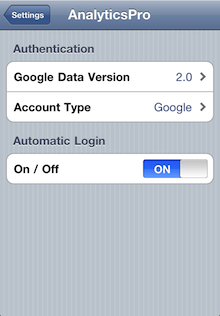
After selecting the "Settings" App, scroll down to Analytics Pro and select it. You will then see the settings screen like the screenshot on the left.
You will see an option called "Account Type" which has two options "Hosted or Google" or "Google".
Hosted or Google
If the user information matches both a hosted and a Google account, only the hosted account is authorized.
(A Google Apps account is a hosted account).
If you only have a Google Account it will authorize the Google Account.
If you set the Account Type to "Google", it will only authorize a Google Account.
Use this option if you are using a Google Apps account that has recently been upgraded to a Google Account.
A Note for users with iOS 4
If you find that changing the settings are not making a difference, it may be necessary to quit the app. Instructions for quitting an App can be found here.